
Executive summary
IFS Applications is a powerful, comprehensive ERP; yet every business has screen needs the standard product doesn’t cover. A special list a department checks every day, a dashboard management has asked for, the information a field team wants to see on a single screen…
erpware Builder for IFS Applications lets you design and publish these screens without changing IFS itself. Screens are built with drag and drop in the Designer and run on live IFS/Oracle data.
The result in three sentences: screen needs don’t wait in the development queue; your IFS installation stays standard; your upgrades aren’t weighed down by customisations.
What problem does it solve?
The screen that isn’t in the standard
The screens IFS provides are designed for general needs. A perspective specific to your business — a list bringing certain fields together, a panel collecting information from several modules — is often not in the standard.
The development queue
Every screen that isn’t in the standard turns into a development request. The request is prioritised, queued and scheduled. Even a small need can wait for weeks; in the meantime, teams fall back on Excel and hand-made reports.
Customisation debt
Every customisation made on IFS is a burden that has to be carried over and tested at the next upgrade. As customisations pile up, upgrades get more expensive, are postponed, and the installation drifts away from the standard.
Builder solves all three problems at the same point: it produces the screen on the Designer side, without touching IFS.
How it works
1. Create your application
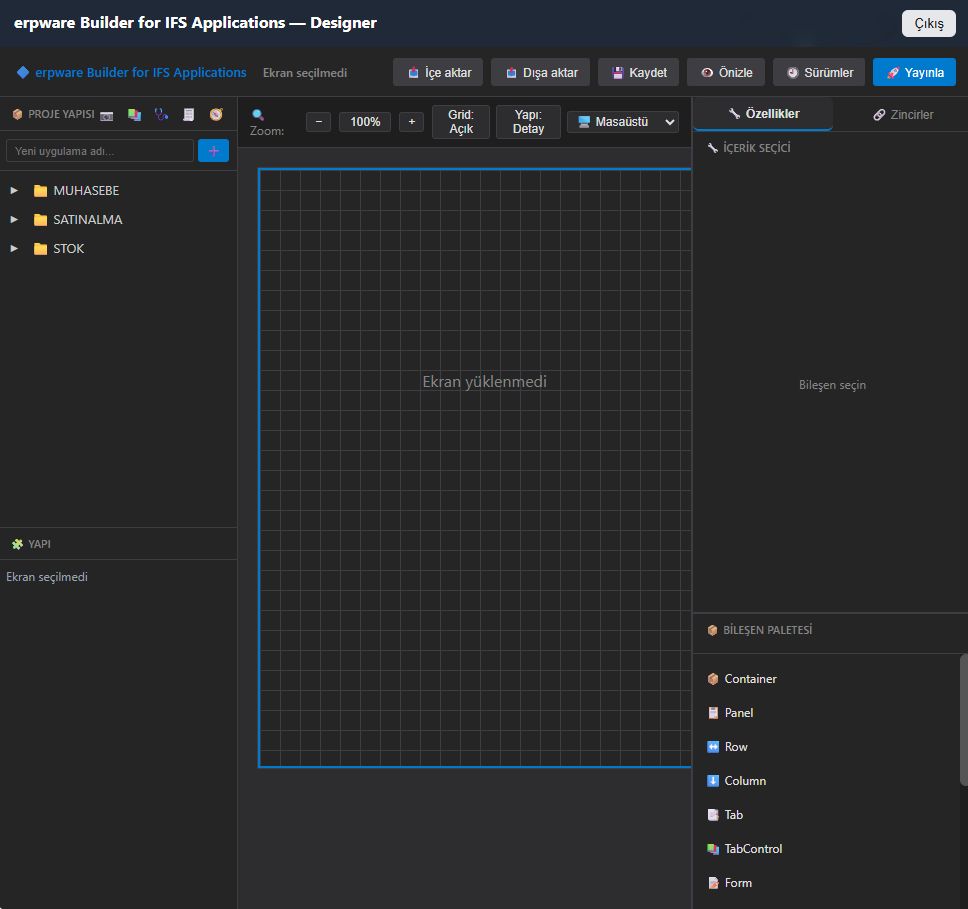
In the Designer you first open an application. Applications are organised by module in the project structure — for example Accounting, Purchasing and Inventory — so even hundreds of screens stay organised and easy to find.
2. Design the screen
You drag the building blocks you need from the component palette and drop them onto the canvas. The canvas grid makes alignment easy; zoom and the structure view help you manage nested layouts. With the device view selector you check how the screen will look on different screen sizes.
3. Define properties and behaviour
The settings of each selected component are in the Properties panel. You set what the component displays with the content selector, and define behaviour between components in the Chains tab.
4. Preview and publish
You preview the design before publishing it. Versions of saved designs are kept; when it’s ready, you publish with one click. You can export your designs and import them into another environment — for example, a screen prepared in the test environment and moved to production.
Getting to know the Designer
| Area | What it does |
|---|---|
| Project structure | Organises applications and screens by module; new applications are added here |
| Structure | Shows the component tree of the selected screen; makes nested layouts easier to manage |
| Canvas | Where the screen is designed, with grid, zoom and device view |
| Component palette | The building blocks dragged onto the canvas |
| Properties | Settings of the selected component |
| Content selector | Where the content a component displays is defined |
| Chains | Where behaviour between components is defined |
| Toolbar | Import, export, save, preview, versions, publish |
Components
Layout components build the skeleton of the screen: Container, Panel, Row, Column, Tab and TabControl. Rows and columns create the layout; tabs split busy screens into sections.
Content components bring data to the user: forms for data entry and editing, grids for lists and bulk views, dashboard components for indicators, and reports.
Example use cases
The following are examples of the kinds of screens Builder is typically used for:
- Inventory — critical stock panel: parts below minimum level and open orders on a single screen
- Purchasing — awaiting-approval list: documents in the approval process in a filterable grid
- Accounting — period-end check screen: frequently checked information in one form, without jumping between several screens
- Management — summary dashboard: indicators from different modules on a single panel
Business value
Screen needs don’t wait. The screen that is needed is designed and published without entering the development queue.
IFS stays standard. Because the need is met without changing IFS itself, the installation stays standard and upgrades become simpler.
The distance between the business unit and the screen shrinks. What the team using the screen wants is discussed right inside the design; thanks to preview, it is reviewed together before publishing.
Designs are manageable. Versions are kept, and screens are moved between environments by export/import.
Governance and control
Preview, then publish. A design is previewed before it goes live; users never encounter an unfinished screen.
Version history. Versions of saved designs are kept; you can trace how a screen has changed.
Moving between environments. With export / import, designs are moved as files between test and production environments.
IFS user session. The Designer opens with an IFS user.
Frequently asked in meetings
Does it change IFS itself?
No. Screens are designed and published on the Builder side; your IFS installation stays standard.
Do we need to write code?
Screens are designed with drag and drop in the Designer; components are moved from the palette to the canvas and configured in the Properties panel.
Is data copied?
No. Screens run on live IFS/Oracle data; you don’t need to set up a separate copy of the data or a synchronisation layer.
Can we see it before publishing?
Yes. With Preview, the design is checked before it goes live.
How do we move screens from test to production?
By exporting the design and importing it into the target environment.
Is it available for other ERPs?
erpware Builder is a product family; the IFS Applications edition is the first, and editions for other ERP systems are in development. See the erpware Builder page for details.
Our notes on IFS
You can find our hands-on notes on IFS Applications in the Field Notes section.
IFS and IFS Applications are registered trademarks of IFS AB. erpware Builder is an independent erpware product and does not imply any official partnership with or endorsement by IFS AB.